
To remove an item from source control, the first thing that you need to do is to select all items in your project and uncheck the Read-Only property. Click Apply then OK. Do these steps for both folder of your project (MyDocuments\Visual Studio Projects and wwwroot).
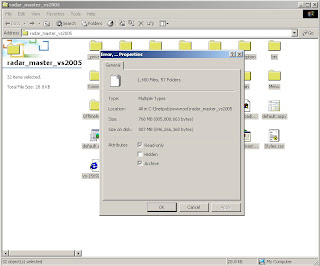
In your Solution Directory, delete all the files with the extension .vssscc or .scc (includes all child folders in your solution directory).
Next, right click on your .sln file and select Open with… Select Notepad.
In your .sln file, find the GlobalSection(SourceCodeControl) = preSolution part. Select the whole part of it until EndGlobalSolution and remove it. Save and close the file.
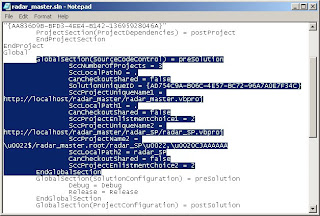
For each of the .vbproj in your project, open it with Notepad. Under
Now, the source control had completely removed from the project.
Hope you will find this helpful.

In your Solution Directory, delete all the files with the extension .vssscc or .scc (includes all child folders in your solution directory).
Next, right click on your .sln file and select Open with… Select Notepad.
In your .sln file, find the GlobalSection(SourceCodeControl) = preSolution part. Select the whole part of it until EndGlobalSolution and remove it. Save and close the file.

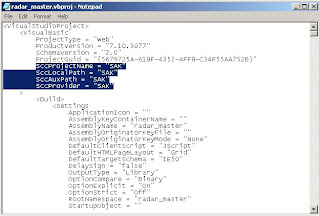
For each of the .vbproj in your project, open it with Notepad. Under
<VisualBasic> you can find the following attributes: SccProjectName, SccLocalPath, SccAuxPath, and SccProvider as shown below. Remove it, save and close the file.
Now, the source control had completely removed from the project.
Hope you will find this helpful.


